Ecco qua!

La cucina di Mamma

Your recipes find their place. Your meals come to life.

Ecco qua! brings together Mamma’s recipes and your own in a recipe book that helps you cook, plan your shopping and organise your meals, with family or friends.

  • More than 70 of Mamma’s recipes
  • 24 languages
  • Free to start

Coming soon to the App StoreIn Switzerland · for iPhone, iPad and Mac

See the app in pictures Free or Famiglia?

Ecco qua! home screen: the recipe of the day, the categories and the search bar
Recipe for tagliatelle al ragù with the Start the recipe button

The app in motion

Five everyday actions, fifteen seconds each. Pick one.

Choose a demonstration
  1. Share

    Spotted a recipe in a video or on a website? Tap Share, then choose Ecco qua!

  2. It arrives

    The recipe goes into your recipe book, with its photo and its source, ready to cook.

  3. The shopping follows

    Tap the recipe’s bookmark: its ingredients join your shopping list, sorted by aisle, quantities added up.

The video is an illustration. The screens come from the app, with sample data. Imports: 5 per month in the free version, unlimited with Famiglia.

  1. Plan your week

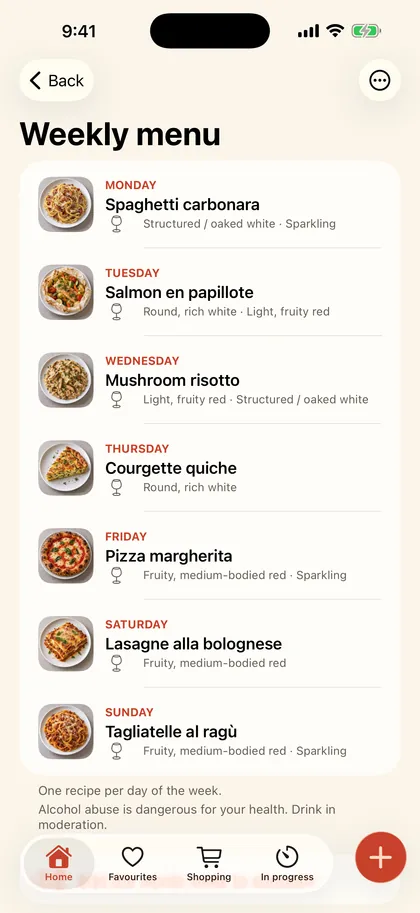
    One recipe a day. To move a dish to another day, hold it, then drag it.

  2. The shopping sorts itself

    The list sorts itself by aisle, with the quantities added up across recipes. It takes your pantry into account.

  3. Nothing goes to waste

    Your fridge warns you about what will soon expire and suggests recipes with what you have.

The screens come from the app, with sample data.

  1. One step at a time

    Cooking mode shows the step large and turns the pages.

  2. Say “Next”

    Hands covered in flour? Say “Next”: the app listens to you, on your iPhone, and moves on to the next step.

  3. Timers follow you

    Start a timer from the step: it stays visible on the Lock Screen and in the Dynamic Island.

Illustration: the cooking mode screen is simplified.

  1. Marco ticks

    In the shop, Marco ticks the peeled tomatoes on his list.

  2. Greta sees it

    At the same moment, Greta’s list updates: the peeled tomatoes are ticked.

  3. Everyone sees who did what

    Shopping, menu and events are shared live in your Household: an initial shows who ticked what.

A real screen from the app, with sample data; the ticks and initials are added for the illustration. Sample first names. Live sharing is part of Famiglia (a Household of up to 6 people).

  1. Aim at the barcode

    Your iPhone’s scanner reads the code by itself, QR codes included.

  2. The product appears

    Score, nutrition, additives and allergens, with markers for what you avoid. Add it to your shopping or to your pantry.

  3. A wine? Straight into your cellar

    A bottle read by its barcode goes straight to its cellar sheet (18 and over). Otherwise: photograph the label, or enter it by hand.

Illustration of the first two screens; sample product. Product data: Open Food Facts (ODbL licence), as a guide and with no medical value. Excessive drinking is dangerous for your health.

Keep, plan, cook

Three steps from a craving to a meal on the table.

Keep

Import a recipe from a compatible link, a photo or a screenshot, or type it in yourself. The source always stays visible.

Plan

Plan your weekly menu: your shopping list sorts itself by aisle, with the quantities added up.

Cook

Follow the steps in large type, page after page. Timers stay visible on the Lock Screen and in the Dynamic Island.

The app in pictures

The screens you will use every day: what they do, and how to use them. The numbers on the pictures refer to the explanations. The pictures come from the app, with sample data.

Ecco qua! home screen: the recipe of the day, the categories and the search bar

Your home screen: today’s craving

As soon as you open it: a recipe of the day, the categories and a search bar. Everything you need to find something to cook in a few seconds.

How to

  1. Search for a recipe by its name or by an ingredient.
  2. Tap a category (starters, mains, desserts, cocktails…) to browse the recipes.
  3. Tap the recipe of the day to open it.
  4. The + button is always there: import a link, photograph a recipe, write your own or scan a product.

The photos of the dishes are illustrations generated by AI.

Recipe for tagliatelle al ragù: photo, time, number of people, difficulty and the Start the recipe button

A clear recipe page

Photo, time, number of people, difficulty: it is all on the recipe. You can also note what you changed, keep the date you cooked it and share the recipe by WhatsApp, as an image or as a PDF.

How to

  1. At the top, the basket adds the ingredients to your shopping and the heart files the recipe in a folder.
  2. “Plan ahead”: when a preparation takes time, like the ragù here, the app tells you before you start.
  3. “Start the recipe” opens cooking mode: one step per page, with its ingredients, and the screen stays on.
  4. Change the number of people: all the quantities follow.
Shopping list sorted by aisle, with the quantity and the recipe of each ingredient

Shopping that understands your recipes

The ingredients of your recipes join the list, sorted by aisle or by shop. The quantities add up: three onions for two recipes, not two lines.

How to

  1. Above the items, the recipes you are making; each has its cross to take it off the list.
  2. Tap the circle to tick an item, swipe it to remove it.
  3. Each item says which recipe it comes from and what you already have in the pantry.
  4. Type “200 g flour” in the bar at the bottom: the app understands the item and the quantity.

In-store mode: tap the trolley at the top of the list, the screen stays on and the text gets bigger. With Famiglia, the whole family sees the list live and knows who is getting what.
And also

Weekly menu: one dish a day, from Monday to Sunday

The weekly menu

One dish a day, moved with a long press. Under the days, “Add the whole week to shopping” sends each dish to your list.
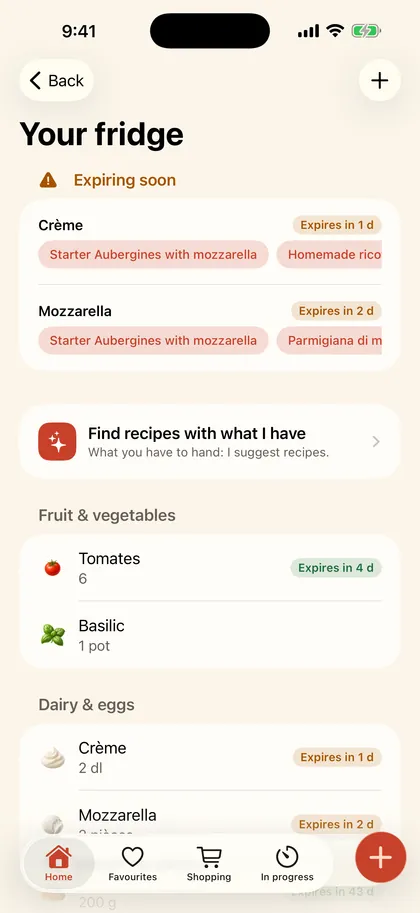
Fridge screen: products that will soon expire and recipe search

Your fridge and your pantry

Add or scan what you have, with the dates: the app tells you what needs using up and finds recipes with what you have to hand.
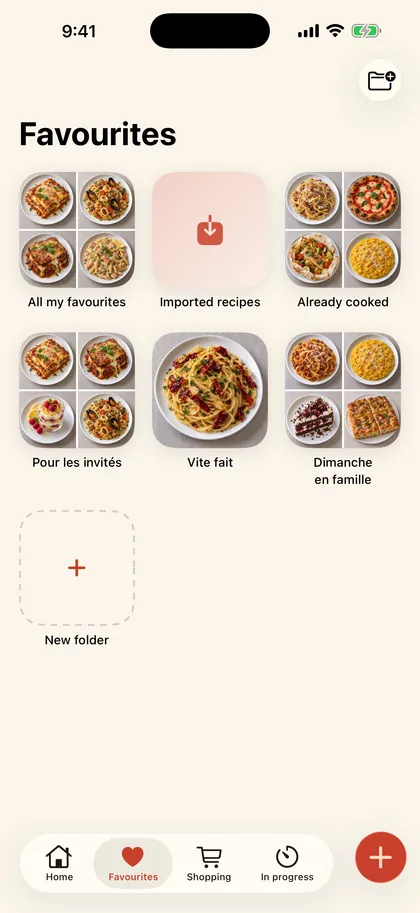
Favourites sorted into folders

Favourites and folders

Sort your recipes into folders your way: “Quick”, “Family Sunday”, “For guests”…
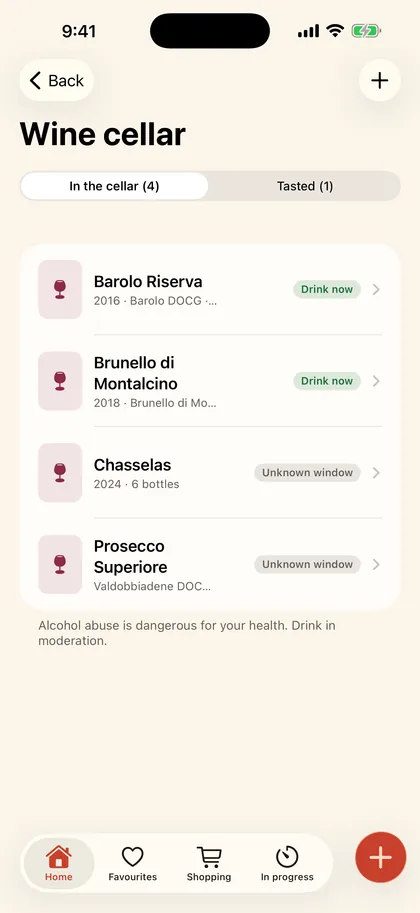
Wine cellar: bottles to drink now

Your wine cellar

Store your bottles with the label, the barcode or by hand, see which ones are ready to drink now and find pairings with your dishes. Excessive drinking is dangerous for your health. Please drink responsibly.
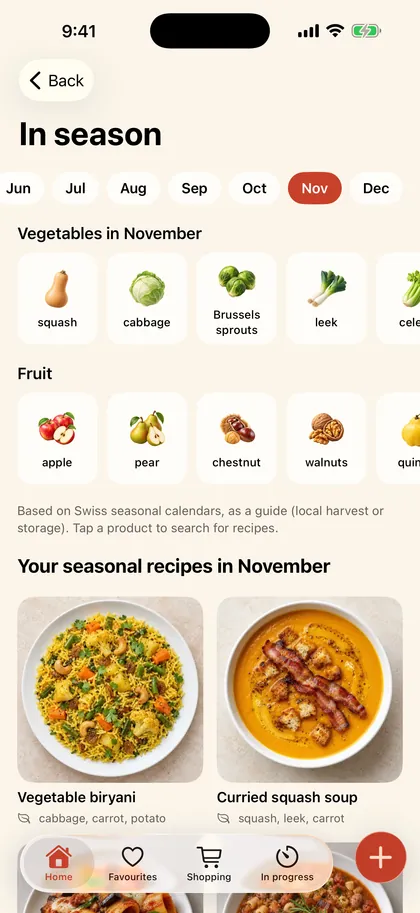
Fruit and vegetables in season in October and seasonal recipes

In season

The fruit and vegetables of the month and the recipes that go with them, based on Swiss seasonal calendars, as a guide.

Free for you, Famiglia for the whole table

Start for free: the essentials are in the app, with no time limit.

Free

For you

  • More than 70 of Mamma’s recipes, with their sauces and cocktails (cocktails from 18)
  • Cooking mode, timers, shopping list, weekly menu, fridge and favourites
  • Your own recipes typed in: no limit
  • 5 imports per month and a 5-bottle wine cellar
  • Backup of your recipes: you find them again on a new iPhone
Famiglia

For the whole Household

Everything in Free, plus:

  • One subscription for the whole Household, up to 6 people
  • Shopping, menu and events shared live: everyone sees who is getting what
  • Unlimited imports and cellar
  • Online AI ideas, as soon as they are available

Famiglia: 14-day free trial for eligible people, then a monthly or yearly subscription that renews automatically. Prices and terms are shown in the app before you confirm. You manage or cancel your subscription in your Apple account settings. People invited into a Household pay nothing.
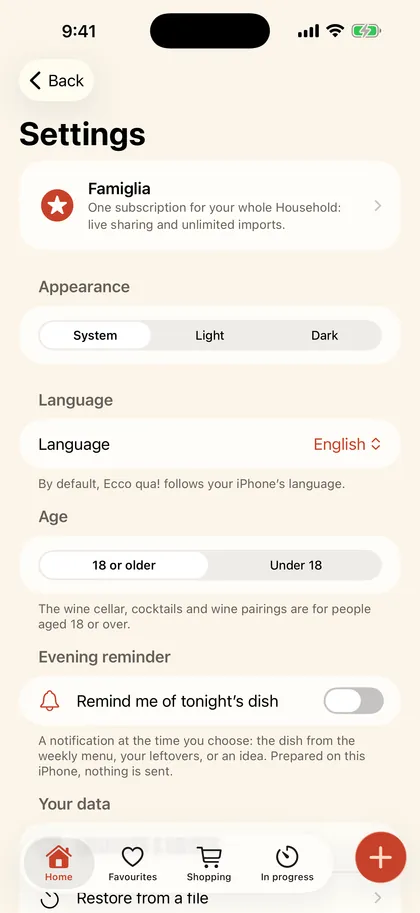
App settings: appearance, language, age and your data, with “Download a backup” and “Erase all my data”

Your data stays yours

  • Backed up to your account

    Your recipes, favourites, lists and menus are backed up to your account. Nothing is lost when you change iPhone.

  • No ads, no tracking

    No cookies on this website, no tracking in the app.

  • Your allergies stay encrypted on your iPhone

    What your guests avoid, too. Only if you agree, an encrypted copy is kept in your account, in Switzerland.

  • You decide

    In Settings, you export or delete your data whenever you like.

Read the privacy policy

Frequently asked questions

When will the app be available?

Ecco qua! is coming soon to the App Store, in Switzerland, for iPhone, iPad and Mac. Write to us at support@eccoqua.ch if you would like to hear when it is out.

Is it free?

Yes, to start with: Mamma’s recipes, cooking mode, shopping, the menu and backup are free. Famiglia, optional, adds live sharing for the whole Household, unlimited imports and cellar and, as soon as they are available, AI ideas.

Do I need an account?

Yes, a free account, with Apple or an e-mail address. It is only used to back up and sync your recipes. With Apple, you can hide your e-mail address.

How do I add one of my recipes?

Tap the + button: import a compatible link, a photo or a screenshot, a video from your library, or type it in yourself. The recipe’s source stays visible. Free: 5 imports per month; typing in a recipe yourself is unlimited.

Are the photos of the dishes real photos?

No: they are illustrations generated by artificial intelligence, marked as such in the app.

Can I rely on the allergy and nutrition information?

It is indicative. Ecco qua! is not a medical tool: always check the ingredients and the labels.

Which languages?

The app is translated into 24 languages, including English, French, German and Italian, and follows your iPhone’s language. The Italian names of the dishes are kept.

Who is the app for?

For the whole family. The wine cellar, cocktails and food and wine pairings are reserved for people aged 18 or over: under 18, they stay hidden.

Where is my data?

On a server in Zurich, Switzerland. Your allergies and what your guests avoid stay encrypted on your iPhone; if you agree, an encrypted copy is kept in your account, in Switzerland. You can export or delete your data in Settings. The details are in the privacy policy.

Another question? Write to support@eccoqua.ch or go to the Support page.

Ecco qua! is coming soon

The app will be available on the App Store, in Switzerland, for iPhone, iPad and Mac. A question in the meantime?

Write to us